
Video
Swap Anything
Replace a person, outfit or object in a video using a photo or a prompt. See Pikaswaps.
Modify Region was Pika's tool for changing one area of a video with a prompt - a new outfit, a different object, a changed background - while leaving the rest untouched. Here's what it did, which Pika apps do the same job today, and step-by-step instructions with prompts.
Modify Region is AI "inpainting" for video. Launched with Pika 1.0, it let you select an area of a clip - a shirt, a hat, a sky, an object - and describe what it should become. Pika regenerated just that area across every frame, keeping the rest of the video and its motion intact.
Pika's studio has since been rebuilt into focused apps, and Modify Region is no longer a separate button. Its job is now done - with more control - by apps like Swap Anything for video and Edit Image for stills.
| Then: Modify Region | Now: current Pika |
|---|---|
| Select an area + prompt | Swap Anything / Edit Image + prompt or reference image |
| Change objects & outfits | Swap Anything |
| Add new things | Pikadditions-style edits in Video Studio |
| Change lighting | Relight Media |
| Change colour & mood | Color Grade |
Replace a person, outfit or object in a video using a photo or a prompt. See Pikaswaps.

Swap, remove or restyle anything in a picture with a simple prompt.
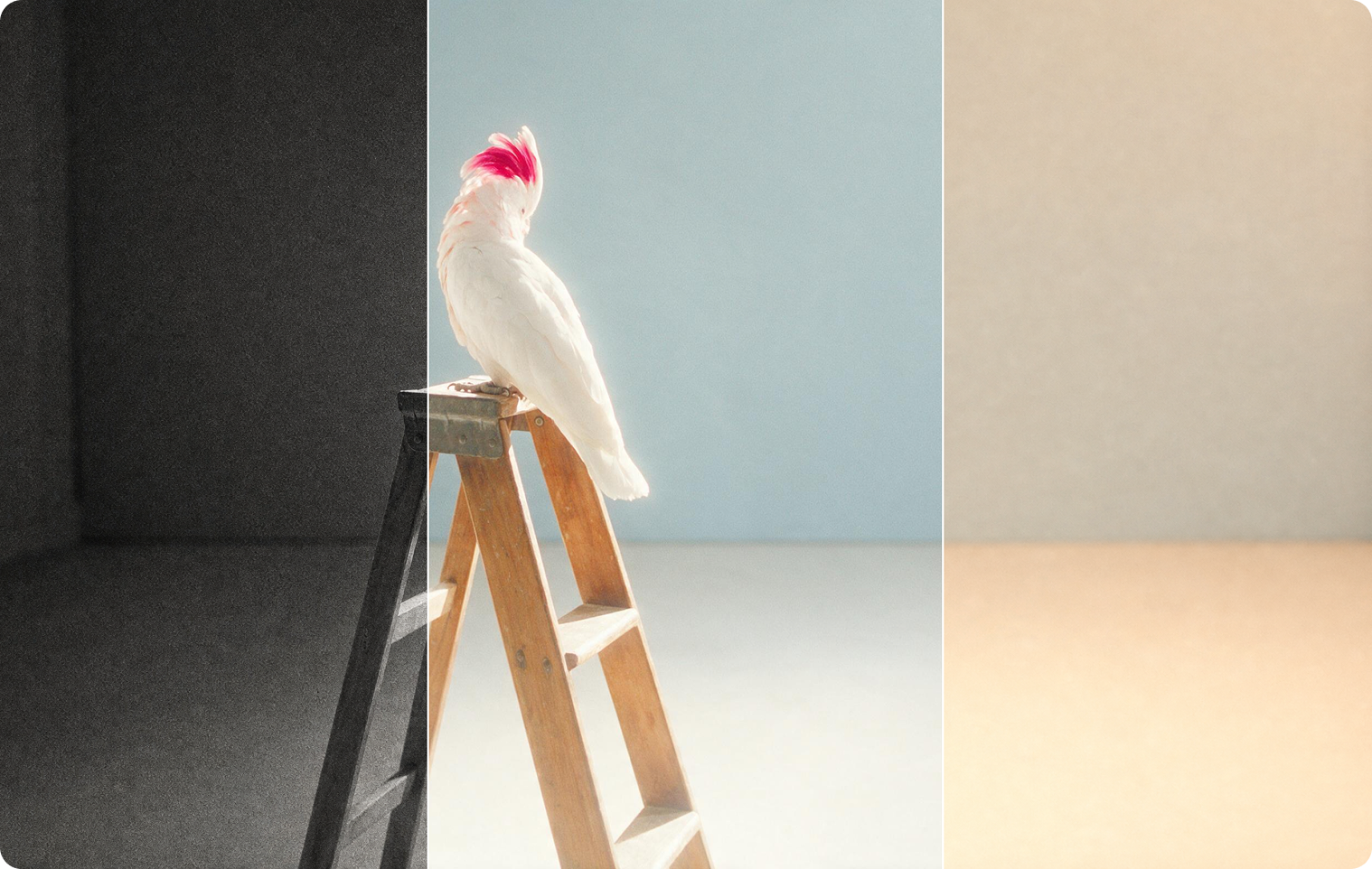
Change colour, contrast and mood without changing the content.

Keep the motion, change the character performing it.
App previews © Pika, from pika.art. App names can change - check pika.art for the current list.
Rebuilds the lighting and shadows in a photo or video while keeping the subject, framing and motion intact.
Insert characters or objects into footage. See Pikadditions.
Change what happens in a clip with a prompt. See Pikatwists.
Sign in at pika.art (or the iPhone app) and open the Swap Anything app.
Use a short, steady video where the thing you want to change is clearly visible.
Name the exact area or object - "the red jacket", "the coffee cup", "the sky".
Type what it should become, or upload a reference photo of the new object or outfit.
Check the edges and motion; regenerate with a clearer description if needed.
Use Relight Media or Color Grade if the new area looks out of place, then download.
Use Edit Image the same way: upload the photo, name the area and describe the change. Then animate the edited image with image to video if you want motion.
Name the area, then describe the change. Keep everything else the same.
Drop your product into existing footage. See branded content.
Show the same shot in different outfits or colours.
Change one wrong detail instead of regenerating the whole clip.
New sky, season or background. See extend background.
Swap a pet, a hat or a face prop for a laugh.
Turn one element into art while the rest stays real.
"The red jacket on the left" works better than "the clothes".
Slow camera moves and clear subjects give cleaner edits.
A photo of the replacement beats a long description.
Add "keep everything else the same" to your prompt.
Fix brightness differences with Relight Media.
Only edit footage you own, and don't swap in real people's faces without consent.
All videos © Pika, from pika.art.